How to Make an AI Santa Video
Turn a photo of your home into a short video that looks like your camera caught Santa visiting on Christmas night.
 Santa AI Video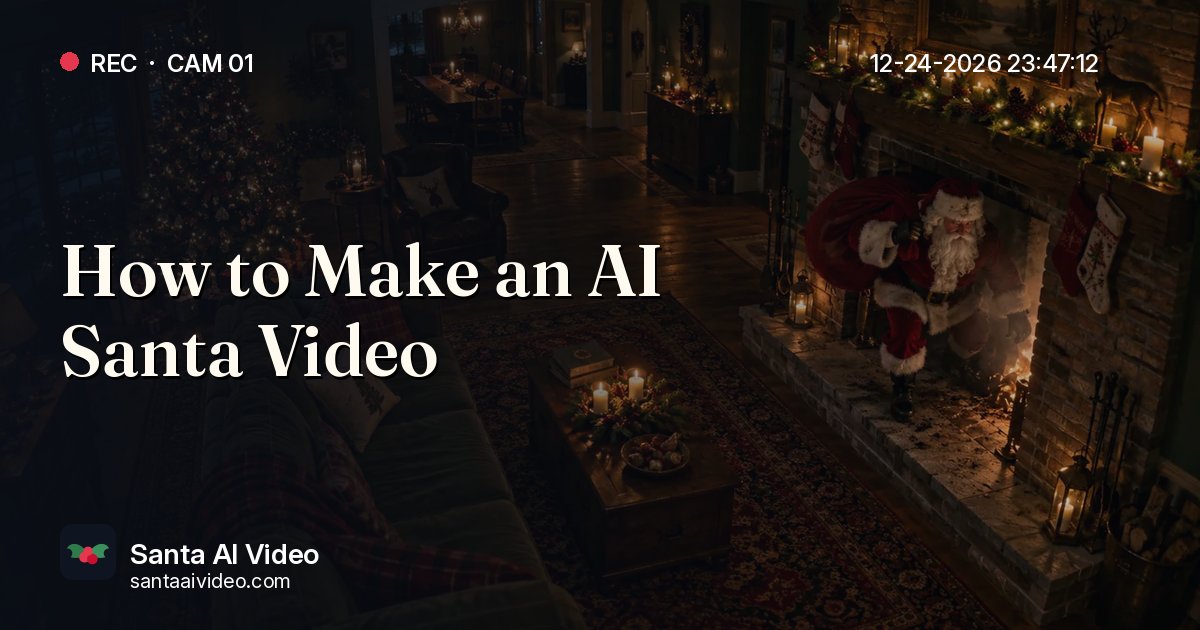
An AI Santa video is a short clip that looks like a camera in your home caught Santa Claus on Christmas Eve. Santa walks into your real living room or up to your real front door, does something festive, and the footage carries a home-camera timestamp for the night you choose. This guide walks through the whole process, from taking the right photo to sharing the finished video with your family.
What you need
- One photo of your home. A living room with a Christmas tree, a fireplace, a table, or your front door. JPG, PNG, or WebP, up to 5 MB.
- A phone or computer with a web browser. There is no app to install.
- About a minute to set it up. The video itself usually takes 3 to 8 minutes to generate, and we email you when it is ready.
The short version
- Take a clear landscape photo of the room where you want Santa to appear.
- Upload it on the Santa AI Video home page and pick one of the five scenes.
- Choose the December night shown on the camera timestamp.
- Check the free preview image of Santa in your photo.
- Unlock the video, then download it or share it with a link.
The rest of this guide explains each step in more detail, with tips that make the result more convincing.
Step 1: Take the right photo
The photo is the foundation of the whole video. We use it as the first frame, so whatever is in your photo — the tree, the furniture, the lighting — is what appears in the clip. A few minutes spent on the photo makes more difference than anything else.
Think like a home camera
Real security cameras are usually mounted high in a corner or on a shelf, looking slightly down across the room. Taking your photo from a similar spot makes the final clip feel like genuine footage. Stand in a corner or a doorway, raise your phone a little above eye level, and point it toward the tree, fireplace, or table.
Photo checklist
- Landscape, not portrait. Turn your phone sideways. The indoor scenes are widescreen, and the doorbell scene uses a 4:3 frame.
- No people or pets. The video should show Santa and your room, nobody else.
- Leave open floor. Santa needs space to stand and walk between the camera and the tree or fireplace.
- Turn on the lights. Tree lights and a lamp give the night-time footage a warm, believable glow.
- Keep it natural. Skip heavy filters, collages, and text overlays.
- Keep it steady. A sharp photo works much better than a blurry one.
You do not need to make the room perfect. A slightly lived-in room, with a blanket on the sofa or toys near the tree, often looks more real than a staged one.
Step 2: Choose a scene
There are five scenes, and each is designed around a particular part of the home. Matching your photo to the right scene is the second most important choice you will make.
- Gifts under the tree. Santa quietly leaves wrapped presents beneath your Christmas tree. Use a photo that shows the tree and some floor in front of it.
- Cookies and milk. Santa takes a cookie break and a sip of milk before continuing his rounds. Use a photo of a living room or kitchen table.
- Chimney arrival. Santa climbs out of the fireplace and brushes the soot off his suit. Use a photo of your fireplace.
- Doorbell visit. A doorstep delivery, a friendly wave, and footsteps in the snow, framed like a doorbell camera. Use a photo of your front door or porch. Our Santa doorbell video page has detailed tips.
- Santa says shh. Santa spots the camera and shares a playful Christmas secret. Use a photo of your tree or living room.
If your photo does not seem to match the scene, the generator will suggest a better fit. It will not stop you from trying, but following the suggestion usually gives a better result.
Step 3: Pick the night Santa visits
Every video includes a camera overlay with a date and time. You can choose any night from December 20 to December 25 and adjust the clock time. The default is 12-24 at 23:47, late on Christmas Eve.
Changing the date is useful when your family celebrates on a different day, or when you want to tell a specific story — for example, Santa arriving the night your children leave out their cookies. During playback, the seconds tick forward like a real camera clock, and a camera label such as LIVING ROOM or FRONT DOOR appears with it. The Santa cam page explains how these details make the footage feel real.
Step 4: Check the free preview
Before you pay, you can click See a free preview. You will be asked to sign in with Google or with an email and password, and your photo and choices are kept while you do. A few moments later you will see a still image of Santa placed inside your photo, with a watermark.
Use the preview to check:
- Is Santa standing somewhere that makes sense?
- Is the room bright enough to read clearly?
- Is this the right scene for this photo?
If something looks wrong, take a new photo or try a different scene. Learn more on the free AI Santa video preview page.
Step 5: Generate the video
When you are happy with the preview, unlock the video. Pricing is simple: $7.99 for one video, $16.99 for three, or $12.99 for one HD video. These are one-time packs with no subscription. See the pricing page for the current options.
The preview image becomes the first frame of a clip about 15 seconds long. Santa moves through your space while the camera stays completely still, just like a real home camera. Generation usually takes 3 to 8 minutes. You can close the page and we will email you when the video is ready.
If the first result does not look right, every paid video includes one free remake. If a generation fails, the credit returns to your balance automatically. Our refund policy explains the rest.
Step 6: Download and share
Finished videos are private to your account. From your videos page, you can play the clip, download it as an MP4, or create a share link to send to family. Videos are kept until January 31, 2027, so download any you want to keep long term.
Ideas for showing the video to kids
If you are making the video for children, the reveal is half the fun. Some approaches families like:
- The morning replay. On Christmas morning, play the clip on the TV: "Look what the camera caught last night!"
- The phone discovery. Let your child find the video on your phone when they ask whether Santa came.
- The final surprise. Save it for after the presents are open, as a last bit of magic.
- The grandparent link. Send the share link to relatives who cannot be there in person.
Make the photo a few days ahead, while the children are out or asleep, and keep the room looking the same on Christmas Eve. If you leave cookies out, take a bite of one after bedtime so the room matches the clip. Our page on AI Santa videos for kids has more ideas.
The videos are made with AI for family fun, in the same spirit as a note from Santa or a half-eaten cookie. You know your children best and can decide how to talk about it.
Frequently asked questions
How long is the video?
About 15 seconds — long enough for Santa to arrive, do something festive, and leave the frame.
Do I need a security camera or doorbell camera?
No. You only need a photo. The camera look, REC indicator, and timestamp are added to the video.
Can I make videos of more than one room?
Yes. Each video uses one photo and one credit, so a 3-video pack lets you try different rooms or scenes.
What happens to my photos?
Your photos and videos are private to your account. Unpaid photos and previews are deleted after 3 days, and original photos are deleted 7 days after the video completes. You can delete a video or your account at any time. See our privacy policy.
What if I do not like the result?
Use your free remake. If you are still unhappy, email hello@santaaivideo.com and we will help.
Ready to try it?
Take a photo of your tree, fireplace, or front door, and head to the home page to see a free preview of Santa in your home. For more detail on specific looks, explore Santa caught on camera AI, Santa in my house, and Santa video from photo.